10亿+海关交易数据,1.2亿企业数据,2亿+企业联系人数据,1000千万真实采购商。覆盖200+个国家及地区,95%外贸重点拓展市场,可根据行业、经营范围等多方位挖掘目标客户。
免费试用图片定制可让买家通过设备上传自己的图片来个性化商品。买家也可以为自己的图片添加文本或设计文本格式。图片定制是定制工具支持的四种定制类型之一。
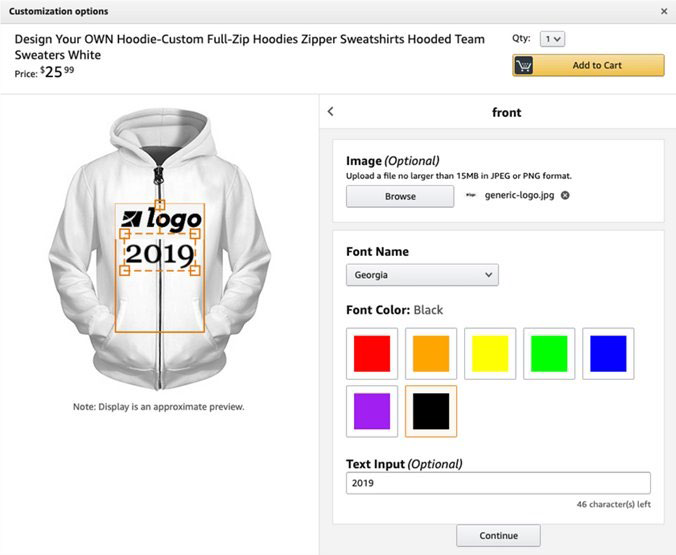
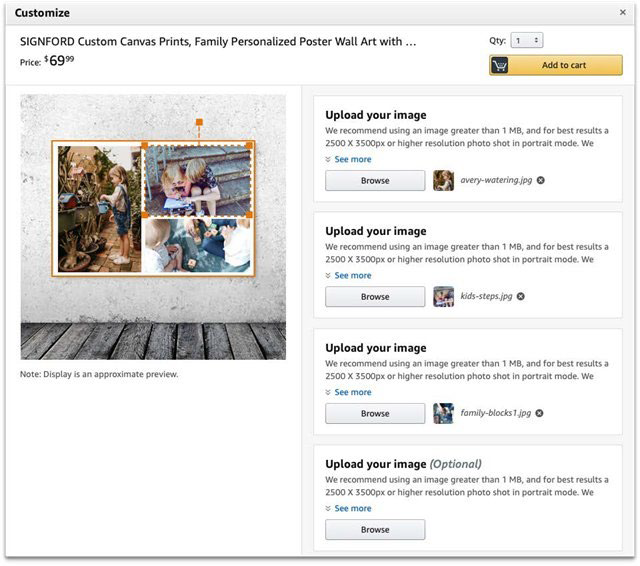
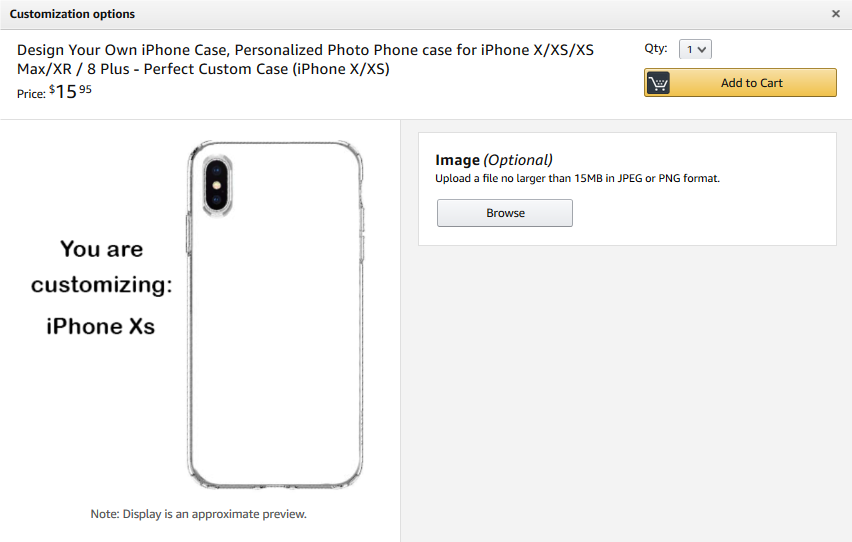
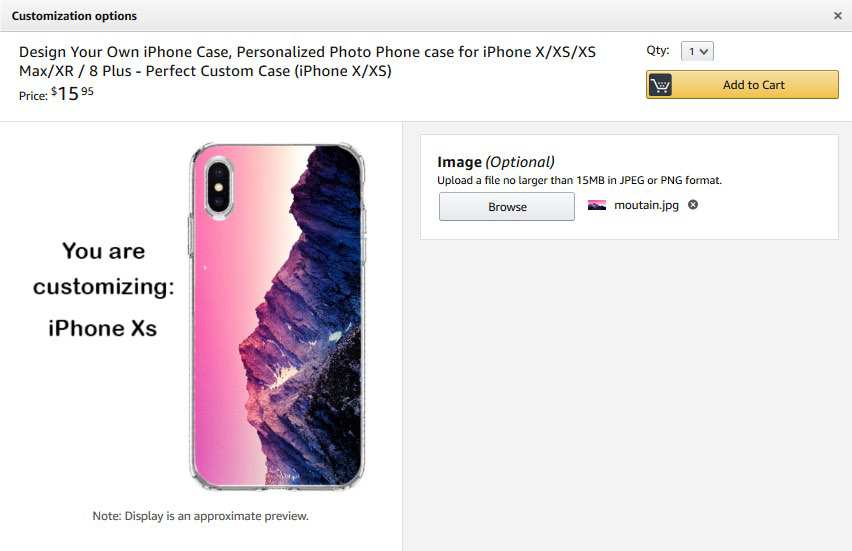
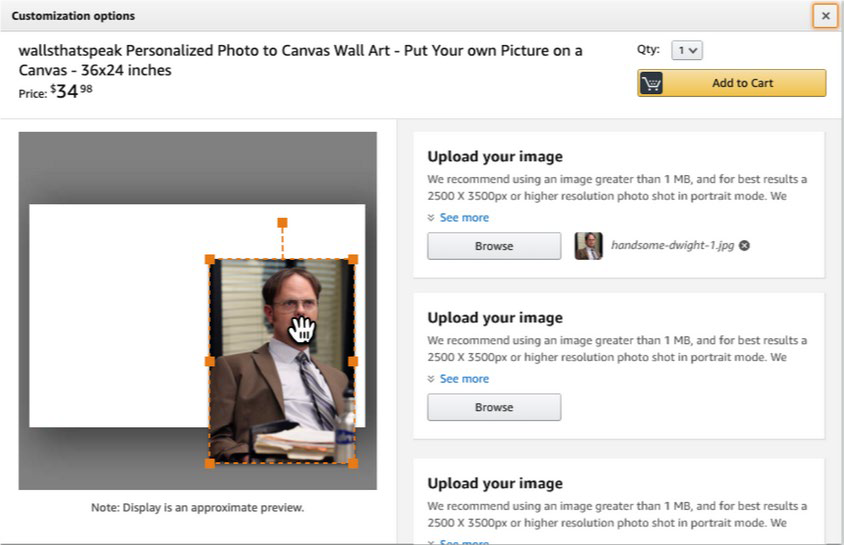
示例: 自由位置
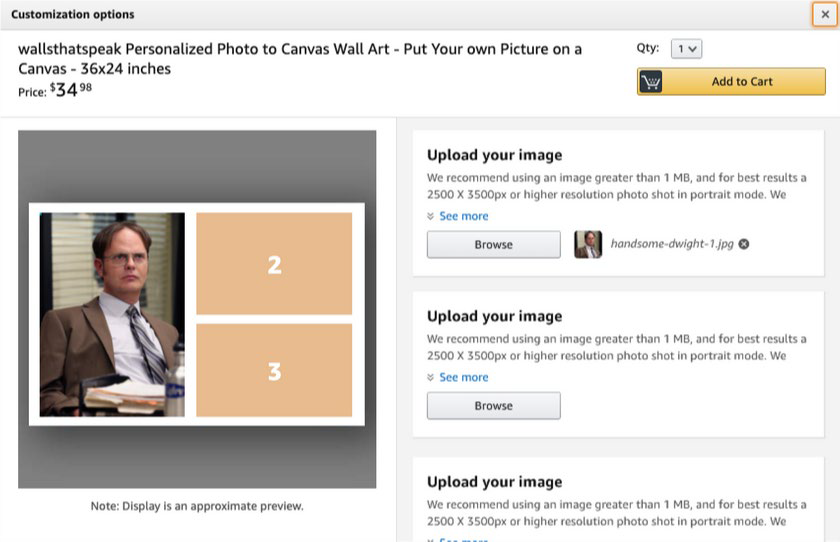
示例: 固定位置
有关查看图片定制订单的信息,请参阅使用“亚马逊定制”处理订单。
图片定制的常见问题:
我上传了预览图片、缩略图或覆盖图片,但却收到一条错误消息:“图片不受支持”?
我们遵循亚马逊的图片验证政策。如果您认为收到此消息有误,请联系销售伙伴支持销售伙伴支持。
亚马逊官网原文详情:
Amazon Custom: Image customization
Important: In order to access the Amazon Custom tools, you will need to be approved via this application and your listings must be active.Image customization
Image customization allows customers to personalize your product by uploading their own image from their device. Customers can also add and format text for their own images. Image customization is available within the Custom tools as one of four options for Customization Type.
Create a listing using image customization
- Enable your product customization:
- Go to Inventory > Manage Inventory and click the Custom Products tab.
- From the Manage Custom Product Listing page, click Enable Customization to the right of the ASIN you wish to enable.
- From the Edit Customization Information page, click the Add Surface button. You are allowed up to 5 surfaces with 10 customizations per surface.
- Enter a surface label for the surface. This label is only used to help you organize your customizations. This label will not be shown to customers.
- Enter a label and upload a preview imageLabel the surface (i.e. front of shirt or back of shirt) and upload a preview image. The surface preview image is the image that customers will place customizations on. The preview image must be a square image with a minimum 400x400 px in JPEG or PNG format with a max size of 3MB.
- OptionalEnter Instructions. You can apply instructions to the overall product and/or apply instructions to each individual text customization (i.e. use capital letters only). All instruction fields are visible to the customers and should clearly specify what the customer is personalizing. We recommend entering less than 3 lines of instructional text per instruction field.
- Optional Upload a clipping mask. Clipping masks allow you to define areas of your preview that should not be covered by customer uploaded images. For example, if you sell a phone case and you masked both the background and camera hole, a customer uploaded image would appear as if it was perfectly cut in the shape of the case, leaving the background and camera hole intact.
- Select the Add customization button to add a customization type.Select Image from the customization type pop-up screen and click Add Customization.
Note: You can add all customization types with one another.- Customers are able to see a preview of the image they upload. To define the parameters and location of the image your customers will see, enter Placement and Image customization information. Mark whether this customization type is required for customers before adding the product to their cart. Customizations are defaulted as required.
- Enter the label and instructions for the buyer, i.e. Phone case image (Upload a high resolution photo). This is visible to the customer and should clearly specify what the customer is personalizing.
- In the 400 x 400 box, draw (by clicking or dragging your cursor) or type the coordinates of the position where you would like your customization preview to display on your preview image. The top left corner of the image area is (0, 0).
- Optional: Center the position of the customization preview using the ‘vertical’ or ‘horizontal’ buttons. The blue box will automatically realign.
- Select whether the image the customer uploads to static or free placement. Static placement allows customers to upload one or more image files to a static location that you specify. Free placement allows customers to upload one or more image files to a product with the ability to place the upload(s) anywhere on the design.
Example: Free Placement
Example: Static Placement
- If you accept multiple image uploads, click add customization or add surface and repeat the steps above.
- If you decide to allow customers to add text or font colors see Text Customization with Amazon Custom.
- Once you’ve added all necessary surfaces, customizations (images, text, options), fonts, colors, and optional clipping mask images, you can click the preview button to see an interactive copy of what the customized product will look like on Amazon.
- Once you are done entering customization information, click Save in the bottom right hand corner of the page to publish the product to Amazon. This process can take up to 24 hours.
For information on viewing image customization orders, see Fulfilling an Order using Amazon Custom.
Frequently Asked Questions for Image Customizations
I uploaded a preview image, thumbnail, or overlay image but received an error message: ‘image is not supported’?
We follow Amazon’s policy for image validation. If you feel you received this message in error please contact Seller Support.
文章来源:亚马逊官方网站
(本文内容根据网络资料整理和来自用户投稿,出于传递更多信息之目的,不代表本站其观点和立场。本站不具备任何原创保护和所有权,也不对其真实性、可靠性承担任何法律责任,特此声明!)
你需要登录亚马逊定制工具,选择要定制的产品,点击开始定制,然后选择图片上传位置即可选择本地图片并上传。
问题二:上传图片大小是否有限制?一般亚马逊上传图片大小限制为2M以下,不同产品类型限制范围可能有所不同,但一般不超过2M。
问题三:上传的图片格式是否有限制?亚马逊支持的图片格式主要有JPG、PNG、GIF三种格式,建议使用JPG格式,图像清晰且文件大小相对较小。
问题四:定制后图片如何预览?在定制工具中,每上传和设置一个图片都可以使用定制工具内置的在线预览功能进行实时预览,可以查看效果。定制完成后也可以点击产品详情页链接进行手机或者电脑端的在线预览。
问题五:定制后图片如何生效?定制完成后,需要提交定制请求供亚马逊审核通过后才能生效。一般1-3个工作日内审核通过后,定制图片就可以在产品详情页和搜索结果中显示。


 印度尼西亚
印度尼西亚 越南
越南 印度
印度 菲律宾
菲律宾 土耳其
土耳其 美国
美国 墨西哥
墨西哥 加拿大
加拿大 危地马拉
危地马拉 歌诗达黎加
歌诗达黎加 阿根廷
阿根廷 巴西
巴西 智利
智利 哥伦比亚
哥伦比亚 秘鲁
秘鲁 俄罗斯
俄罗斯 乌克兰
乌克兰 法国
法国 德国
德国 意大利
意大利 埃塞俄比亚
埃塞俄比亚 乌干达
乌干达 博茨瓦纳
博茨瓦纳 加纳
加纳 肯尼亚
肯尼亚 澳大利亚
澳大利亚 新西兰
新西兰 斐济
斐济 维尔京群岛
维尔京群岛 关岛
关岛